
Illustrating plans and counting defenders
Knight arrows, ghost pieces, attacker and defender counts, and printable annotations make it easier to explain a position and keep the lesson.
A useful game review records more than the move you played. It might show the square a knight should reach, the piece you wanted to bring into the attack, or why a defender mattered. Ironwood’s latest study tools help you put those ideas on the board, find them again, and carry them into a printed review.
Give each idea a clear mark
Draw on board now has six colors: green, red, yellow, blue, black, and white. Alongside square and circle outlines, a translucent filled square can highlight an outpost without hiding its occupant. A cross can mark a threat or a square to avoid.
Solid and dashed knight arrows follow an L-shaped route, with the longer leg first. They make a knight’s path easier to distinguish from a bishop or queen diagonal. While dragging, right-click switches between the solid and dashed versions, just as it does for straight arrows.
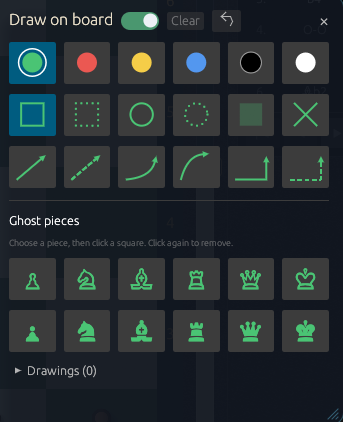
The drawing window opens taller, and matching button sizes keep the controls aligned. Drawings still belong to individual positions, with editing, deletion, Clear, and Undo available. The drawing guide explains the controls.
Place a possibility without playing a move
Ghost pieces let you illustrate a possible placement without changing the real position or Stockfish’s evaluation. Choose a color and a piece symbol, then click a square. Click again with the same piece and color selected to remove it.
Ghosts are personal annotations, so they save with the game and travel with Analysis JSON and Ironwood’s annotated PGN extension. They appear in annotated board copies and printed reports too. In the 3D view they remain flat symbols over their squares.
Game Moves now shows a blue drawing icon on annotated moves, even if there is no written note. Moves with both a note and drawings show both indicators; hovering reveals the note and drawing count.
Count the pressure on a piece
Open Tactical Map and enable Attack vs Defense on the 2D board. Every real piece receives two bubbles: red at the top-left counts enemy attackers, and green at the top-right counts friendly defenders. Zero counts are visible too, and the numbers follow the position as you navigate the game.
These are counts of geometric control, including pinned pieces. They respect intervening blockers and pawn attack directions, but they do not prove which captures are legal or which exchanges win material. Ghost pieces do not affect them. The bubbles are temporary Tactical Map overlays, separate from your saved drawings, and are hidden in 3D. Tactical Map help explains their scope.
Keep the explanation in the report
Print analysis now gathers written notes, manual symbols, and drawings in Your notes and drawings. A position with drawings receives an annotated diagram even when it is outside the engine’s critical-position list. Starting-position annotations are included as well.
This gives your review room for plans that were sound, alternatives you considered, and ideas the engine’s mistake list does not capture. Pause or stop game analysis, open the report, and print it or save it as PDF. Saving and sharing analysis covers the options.
Arrange the space around your study
Settings → Background… now opens a dedicated settings window. Choose Gradient Only, the built-in Ironwood knight image, or one of your uploads. Image opacity, gradient strength, and the 3D backdrop have separate controls; uploads stay on this device. First launch uses Gradient Only with a 17% gradient and a transparent 3D backdrop. Returning users keep their saved choices.
The workspace also has a thinner balance bar, matching black move and prediction tables, more compact pawn-structure and king-safety panels, and clearer analysis controls. The expanded analysis view uses translucent panels with a more opaque lower details area. Features provides the updated overview, and the changelog lists the changes.