
A look inside Ironwood
See the board
in action.
Explore the boards, compare saved analyses, inspect positions, and add your own annotations. Select a screenshot to view it at full size, or open the example analysis report below.
Find your study tool
The live board stays beside seven main tabs. Use the position slider and navigation buttons to move through the game from any analysis tab.
Analysis compares saved engine results with the saved-results selector and keys 1–9. Position groups pawn structure, mobility, and king safety. Tactical and Annotations use textured sunken panels and gold-accented tabs. Read the saved-analysis guide.
Some screenshots below show earlier tool layouts. The captions and linked guides describe their current locations.
Game
Explore the boards, manage your library, and bring games into Ironwood.
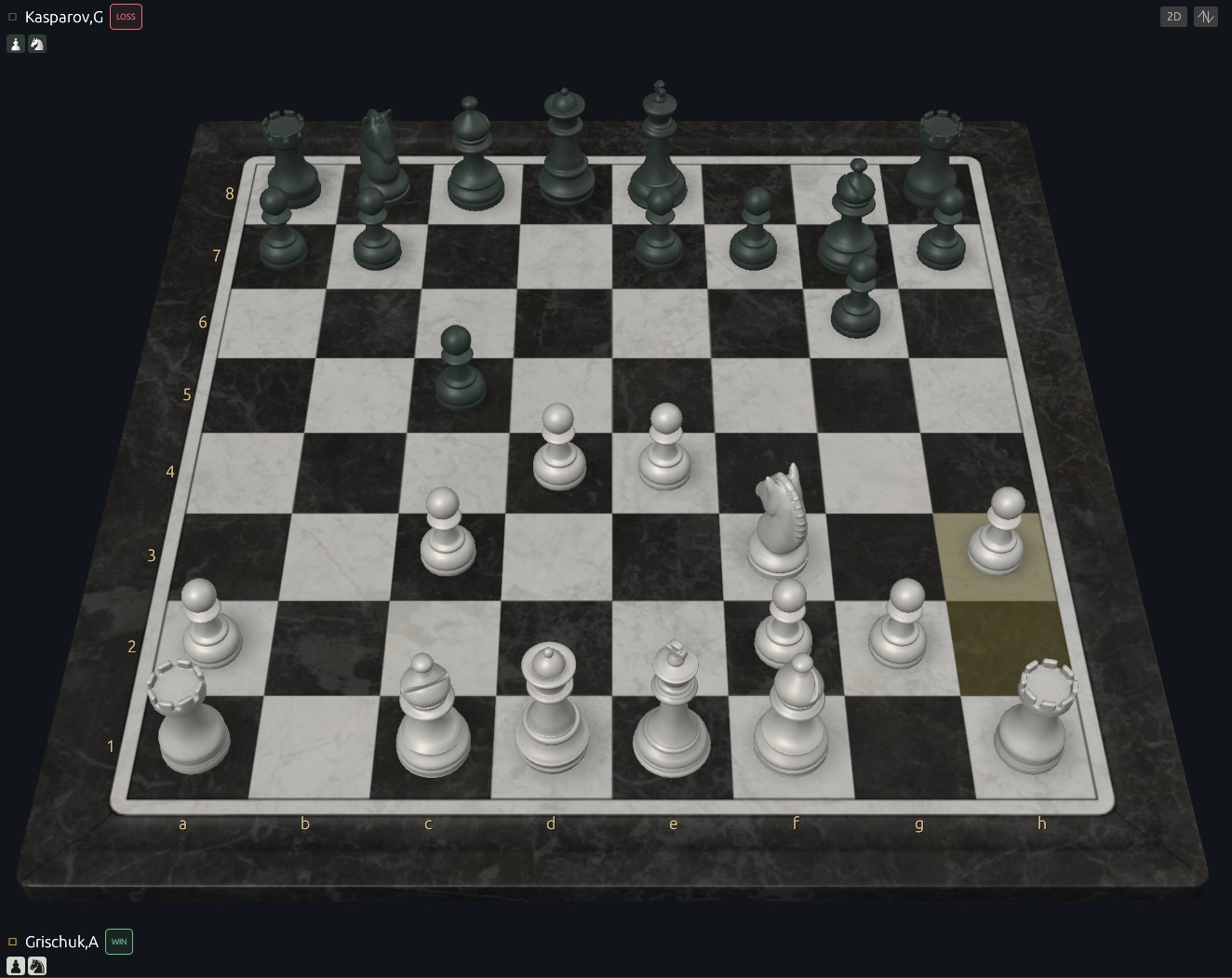
3D chess board
Play and review moves on the textured board inside the Ironwood workspace.
View full size ↗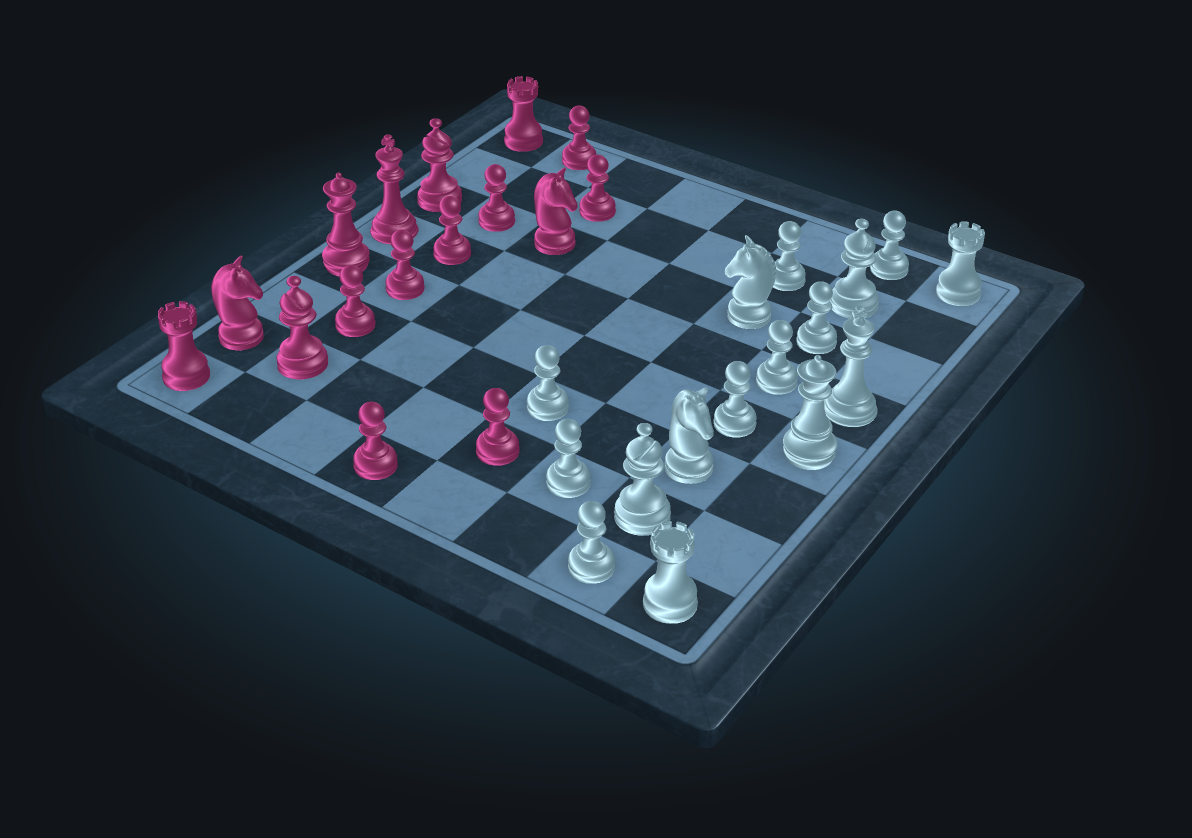
Glass 3D board
Pale blue and magenta pieces on a cool-toned board, shown in the live board.
View full size ↗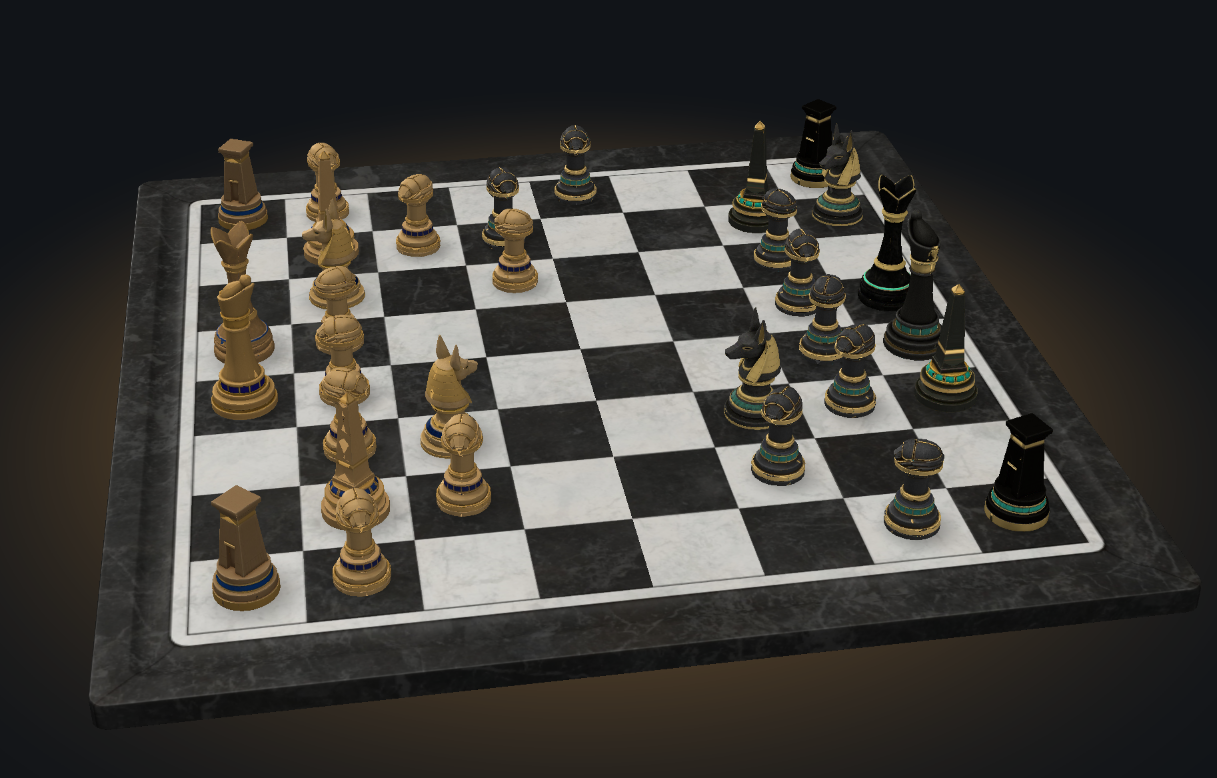
Egyptian 3D board
Gold and black Egyptian pieces on a textured marble board.
View full size ↗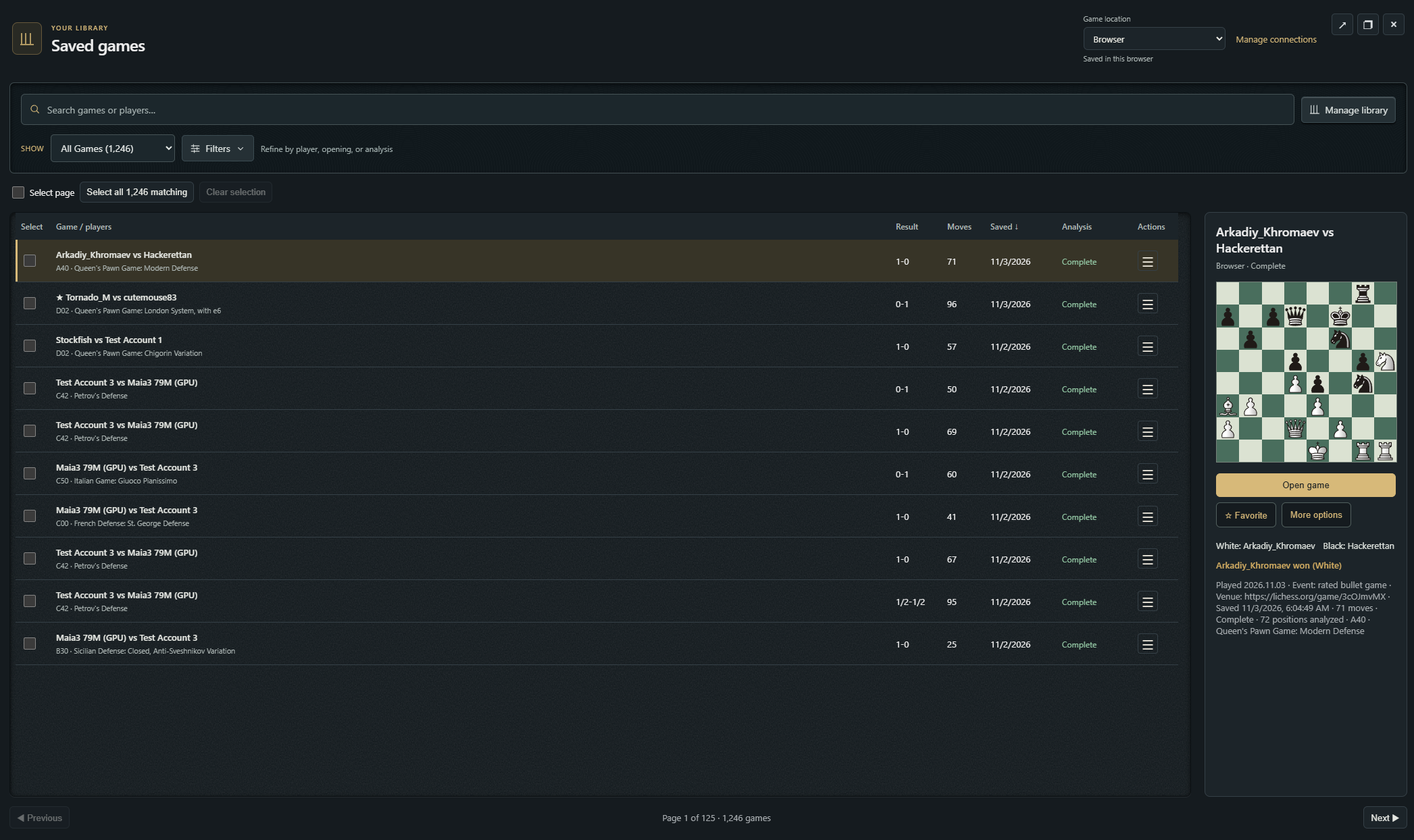
Saved games
Search and organize games in Browser or Companion storage, refine the list with filters, check analysis status, and preview a selected game beside the table.
View full size ↗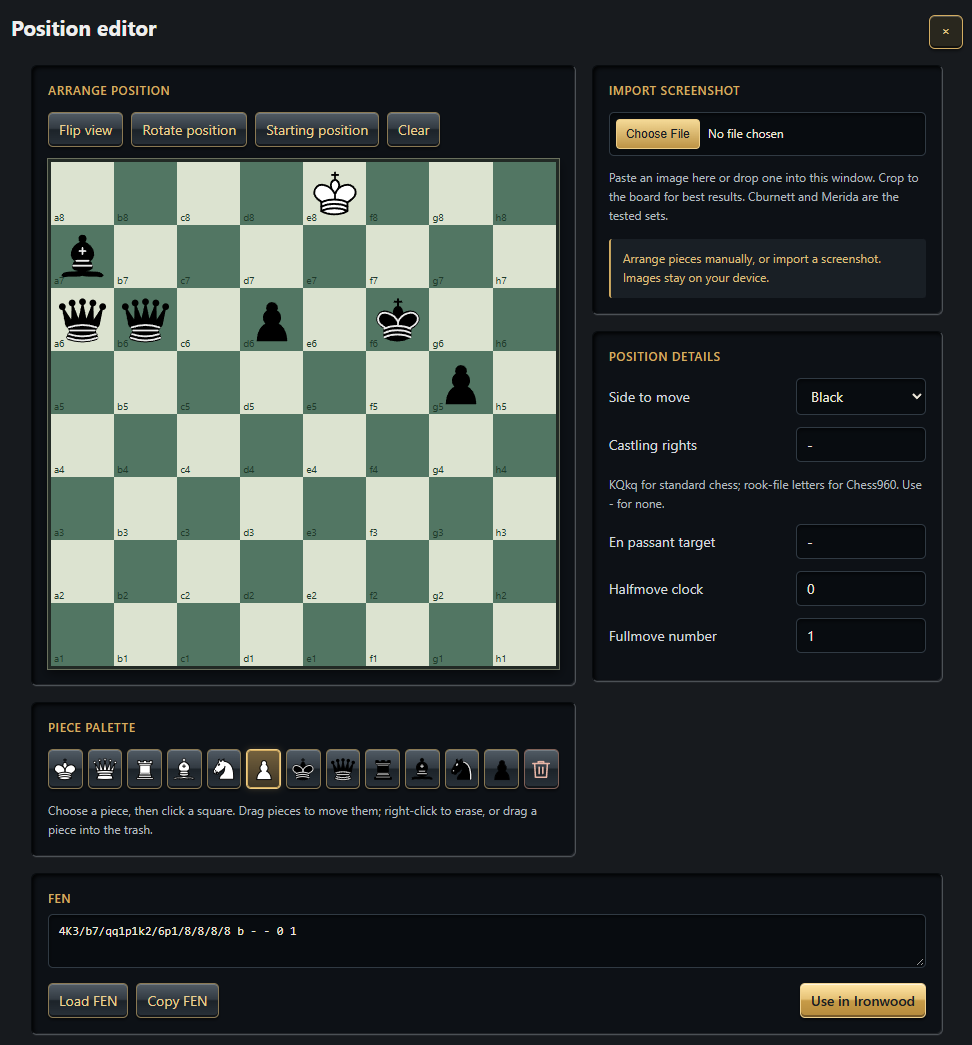
Position editor
Arrange a position by hand, import a screenshot, or load FEN.
View full size ↗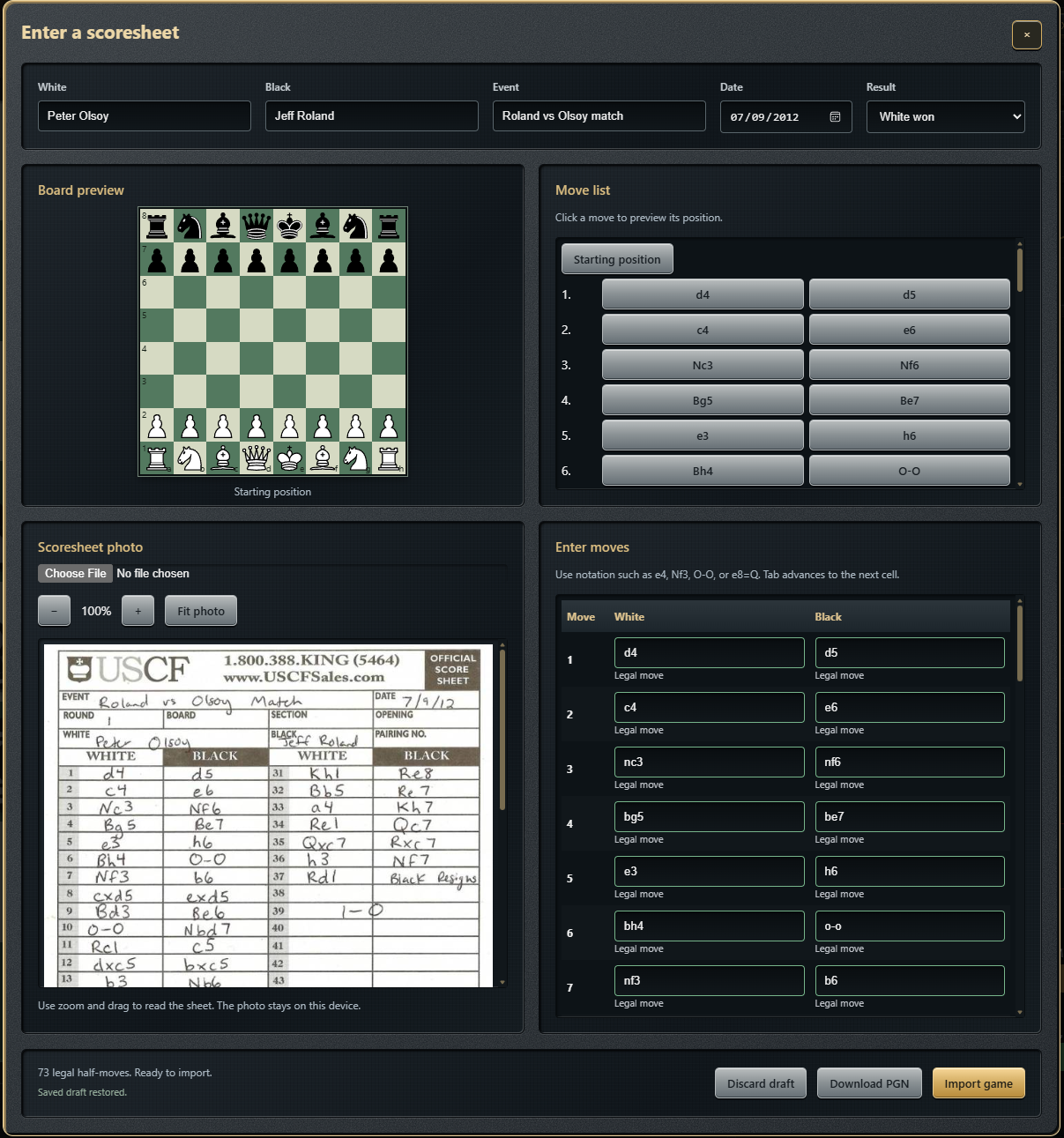
Scoresheet import
Enter a handwritten game beside its photo, validate moves on the board, and save your draft or download PGN.
View full size ↗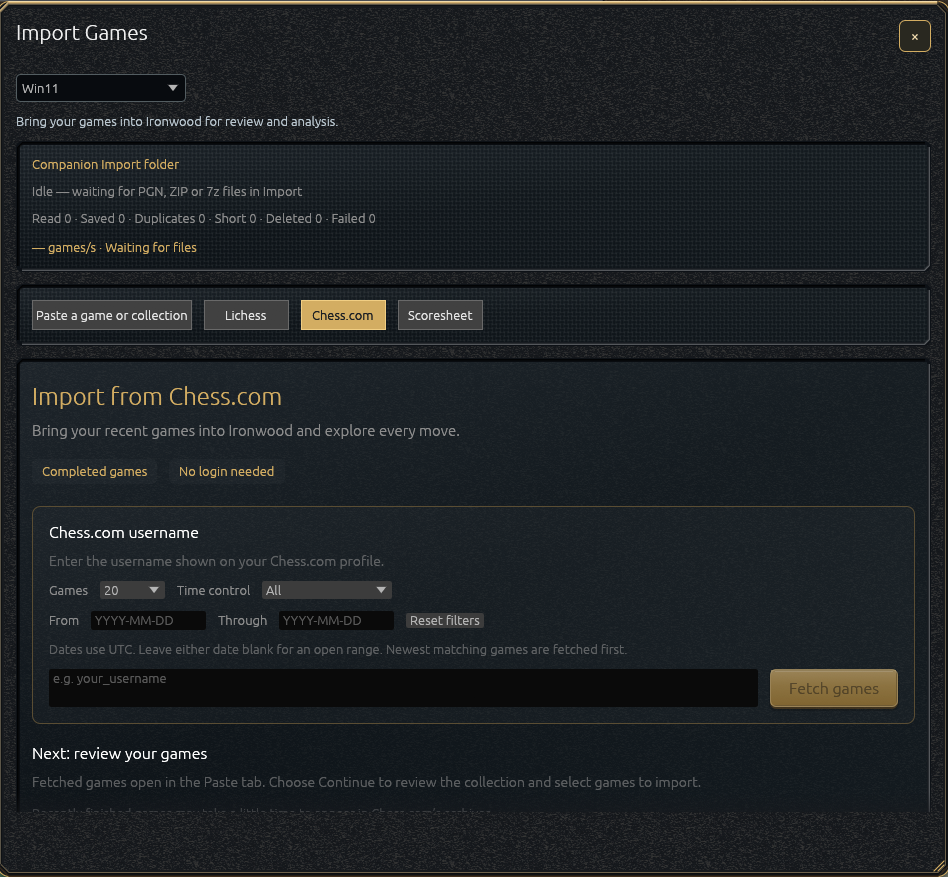
Import games
Bring in games from files, online accounts, or Companion storage through Game library → Import.
View full size ↗Analysis
Use Analysis for engine results, Position for structural study, Explore for openings and endgames, and Annotations for your own commentary.
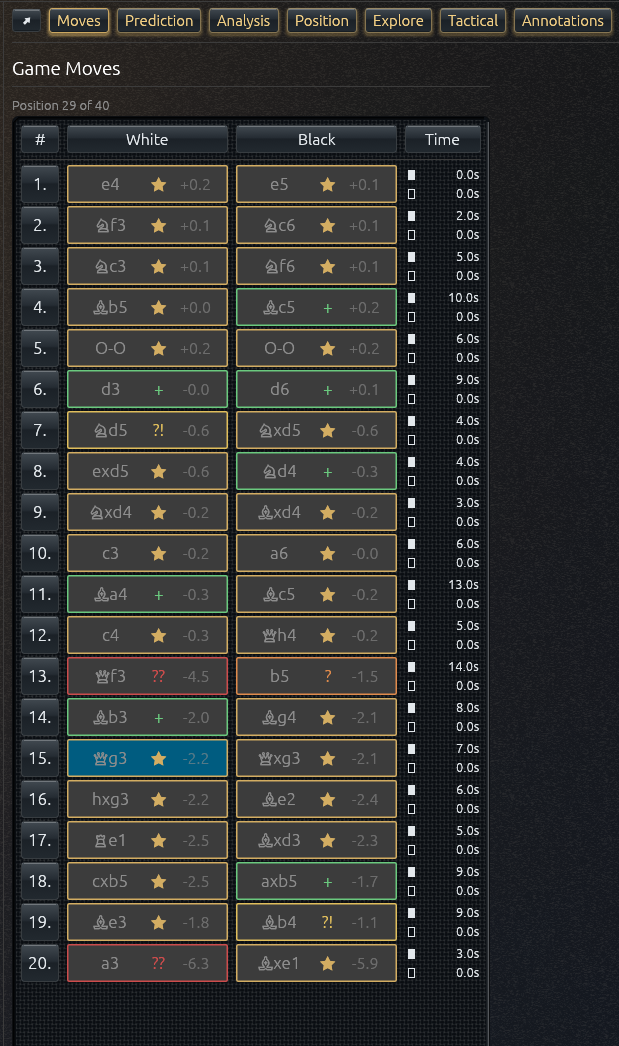
Moves tab
Step through the game beside the live board, with move-quality symbols, evaluations, and time spent on each move in the Time column. Hover a time to see available clock details.
View full size ↗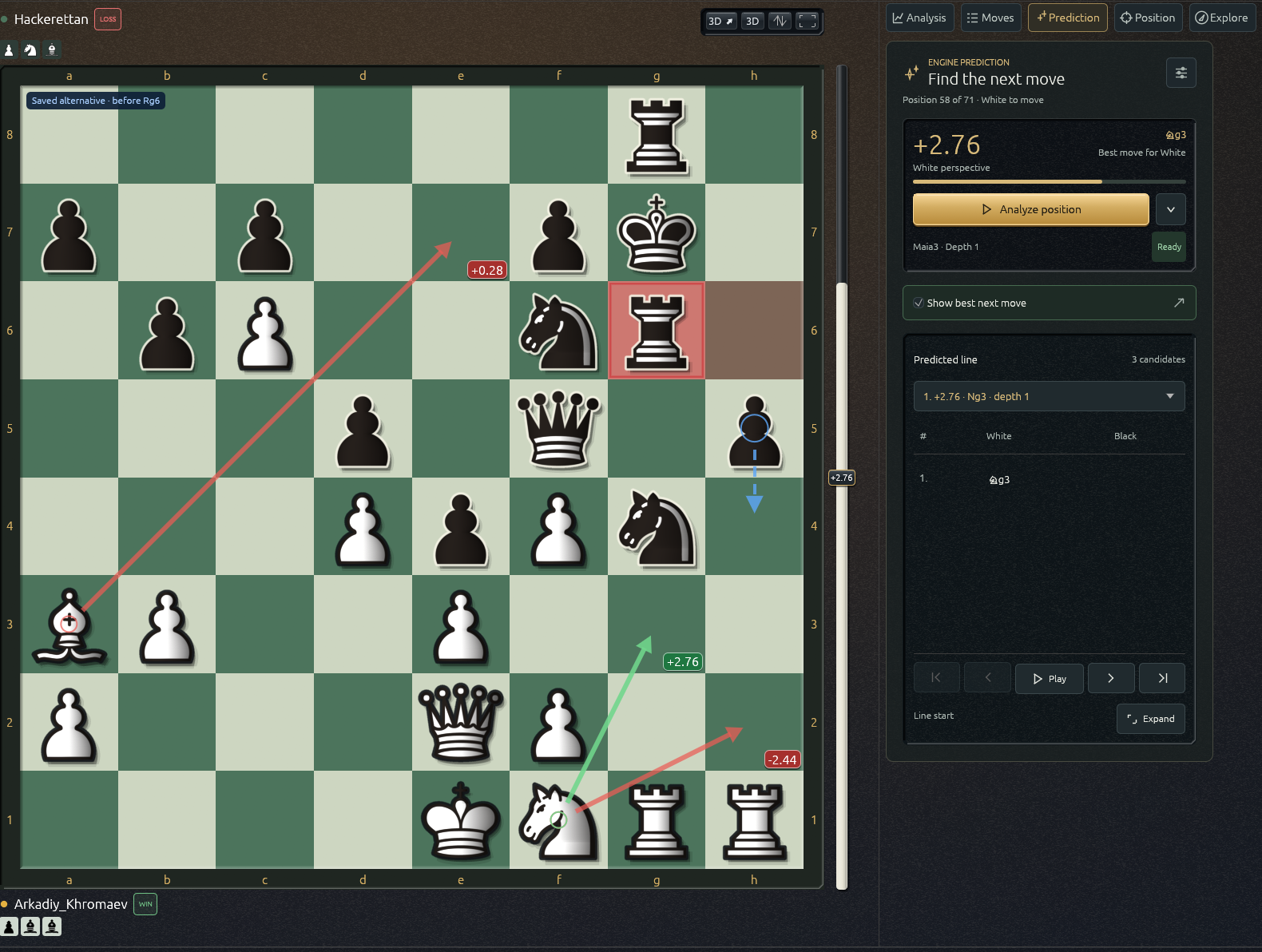
Engine Prediction
Inspect the engine’s evaluation and expected continuation in the dedicated Prediction tab.
View full size ↗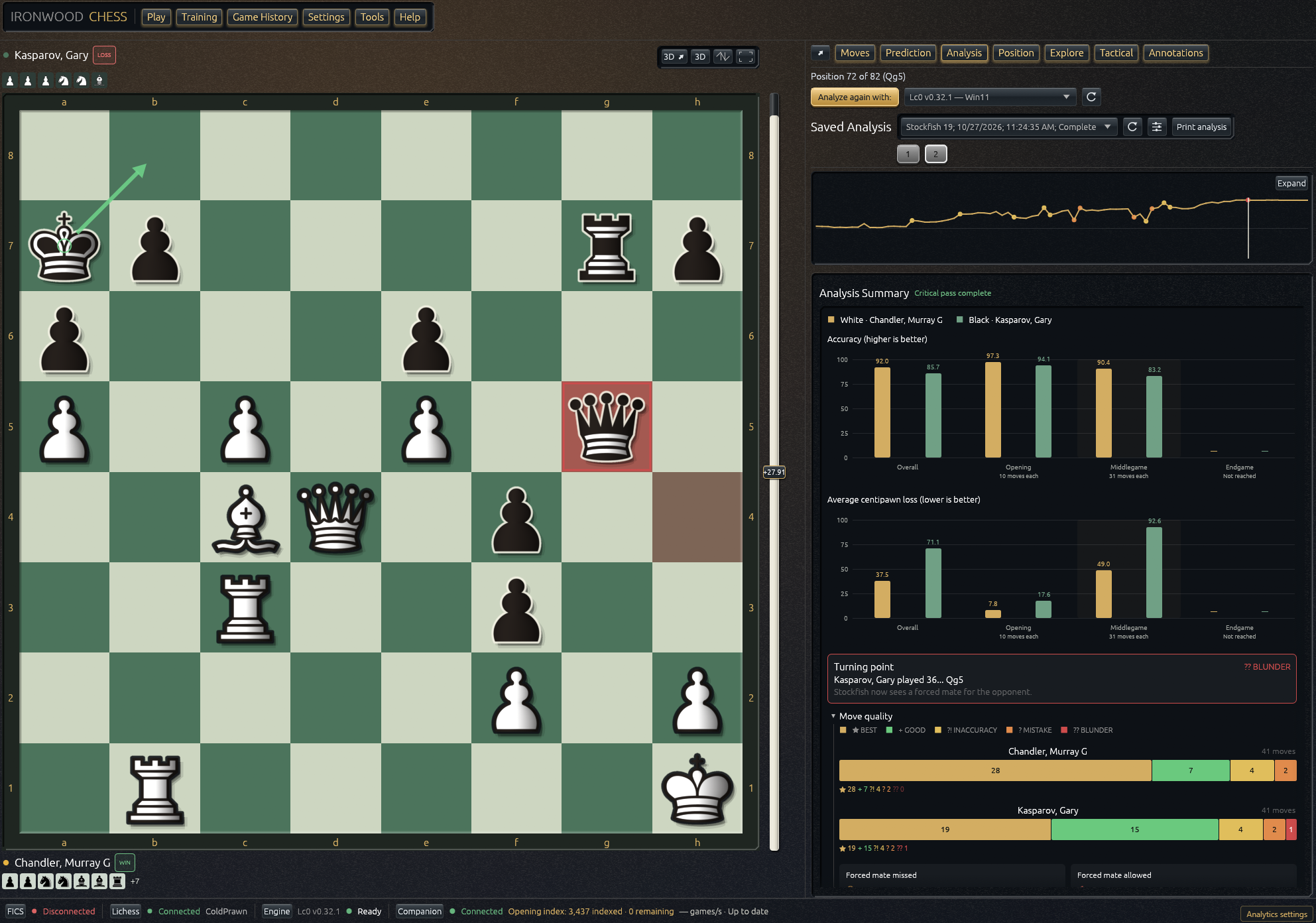
Full-game analysis
Compare both players’ accuracy and average centipawn loss by game phase, review move-quality bars, and inspect critical moves in Analysis. Compare saved runs using the saved-results selector or keys 1–9; open More options to see the numbered shortcuts.
View full size ↗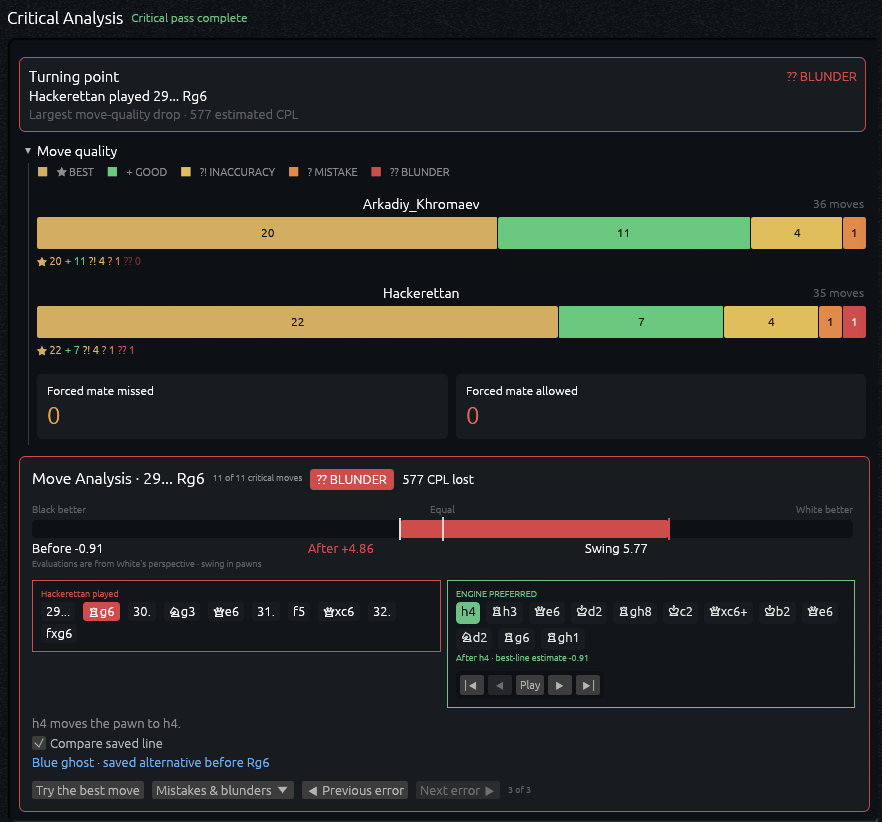
Critical Analysis
Find turning points, compare move quality, and inspect the played continuation beside the engine’s preferred line after critical-move verification.
View full size ↗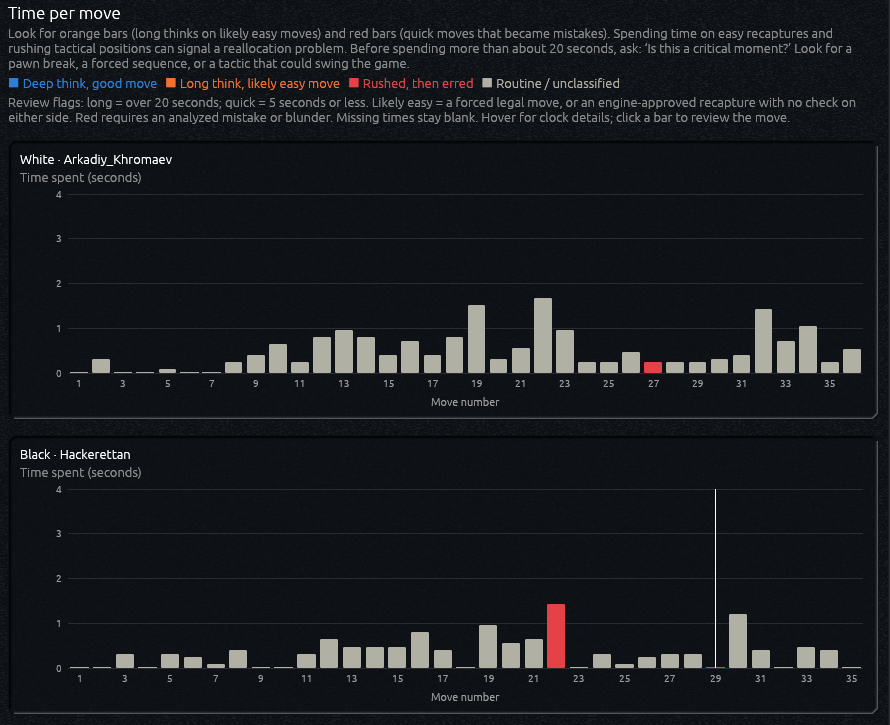
Time per move
Compare how both players used their time. Hover for clock details or select a bar to review the move; missing timings stay blank.
View full size ↗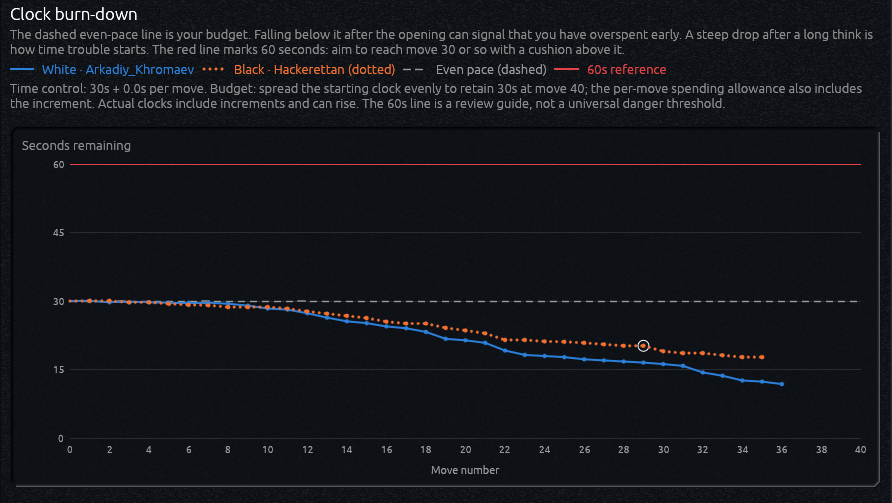
Clock burn-down
Follow both clocks through the game alongside an even-pace budget and a 60-second reference line to review time use.
View full size ↗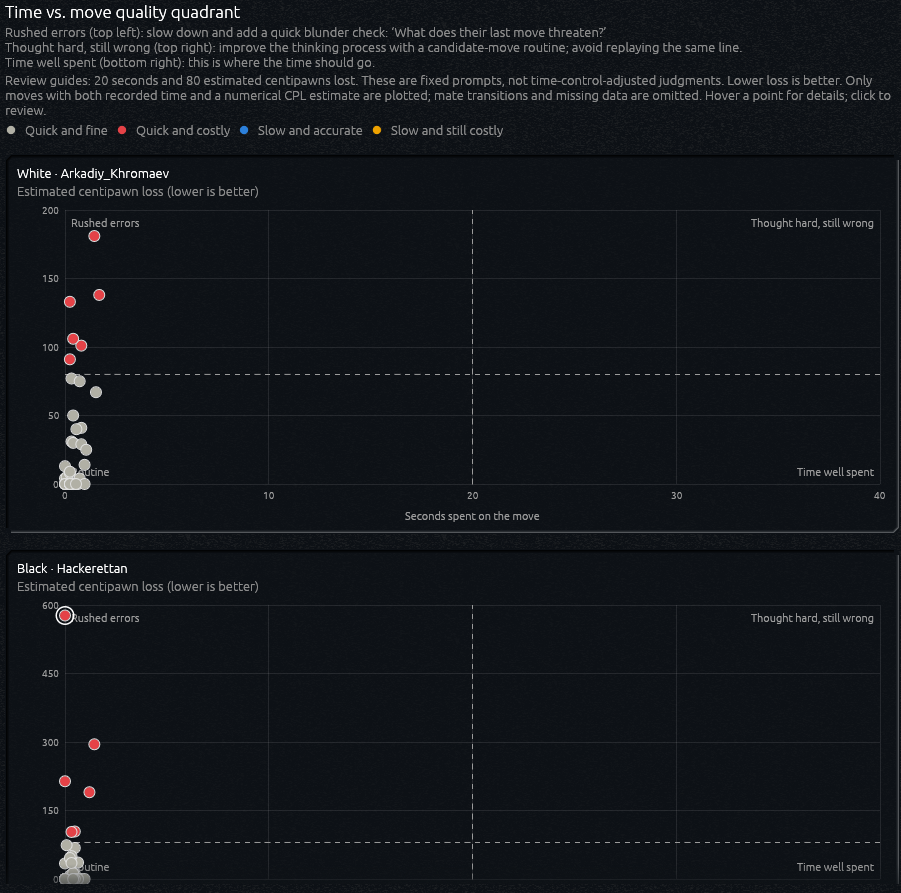
Time vs. move quality
Compare thinking time with estimated move loss to spot rushed errors and costly long thinks. Hover a point for details or select it to review the move.
View full size ↗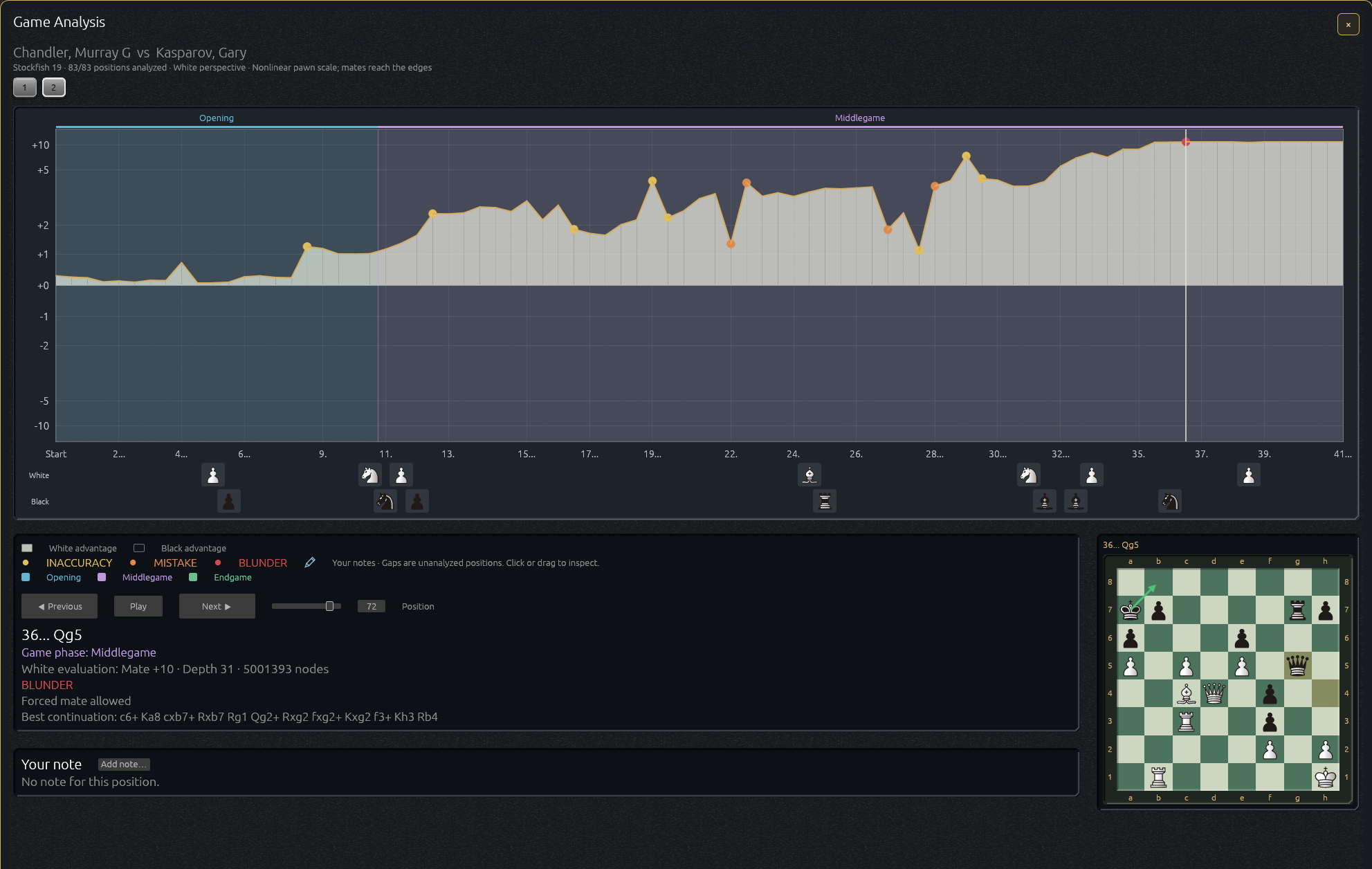
Expanded game analysis
Follow game-phase highlights, inspect critical moves, and read notes beside a board preview. The saved-results selector and keys 1–9 switch saved runs here too; the engine heading follows the selected run.
View full size ↗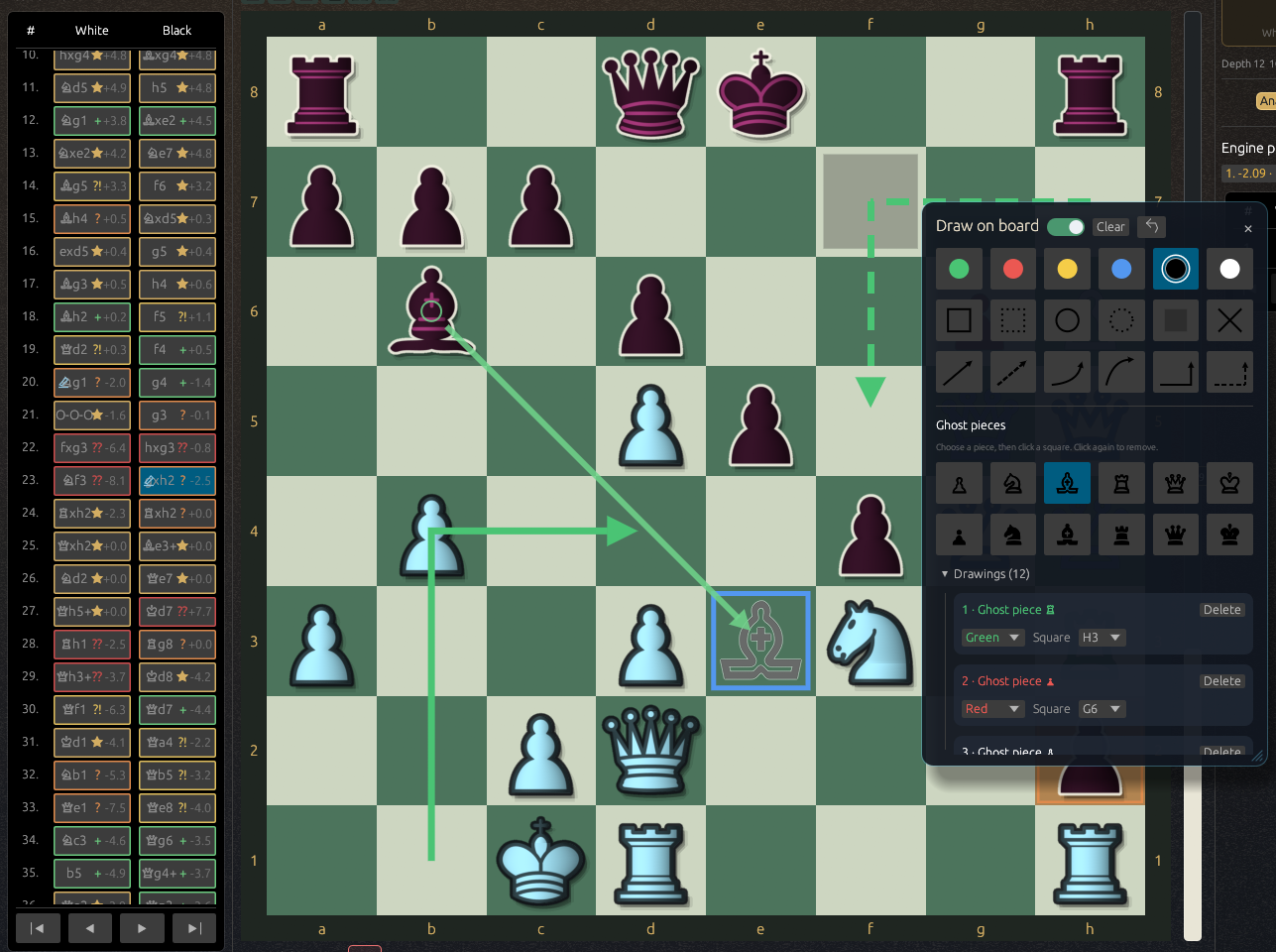
Drawings and ghost pieces
Illustrate plans with colored shapes, solid or dashed knight arrows, and ghost pieces. Open Annotations → Drawings to create or edit individual drawings beside the board.
View full size ↗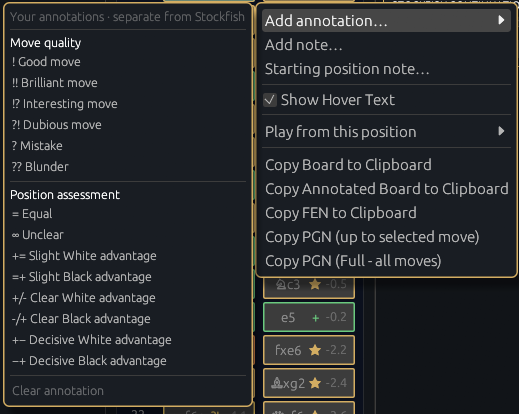
Game Moves menu
Keep common symbols and note shortcuts in the right-click menu. Annotations → Chess Symbols adds a searchable More symbols section without expanding this menu.
View full size ↗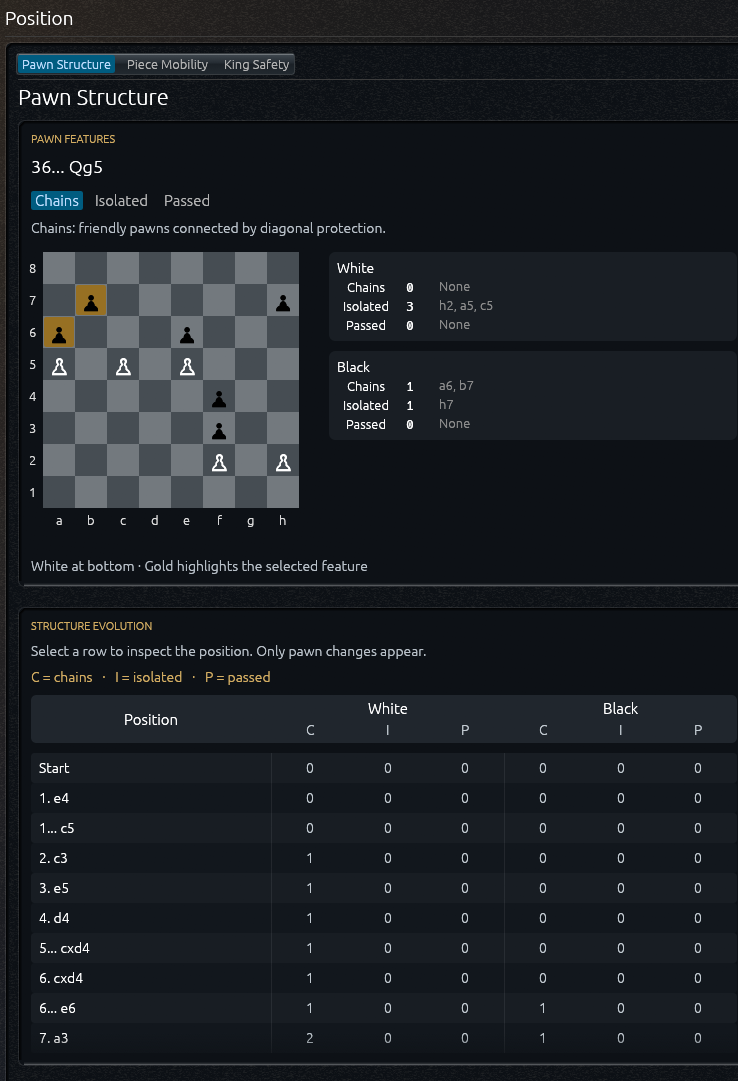
Pawn structure
Open Position → Pawn Structure to identify pawn chains, isolated pawns, and passed pawns, then follow structural changes through the game.
View full size ↗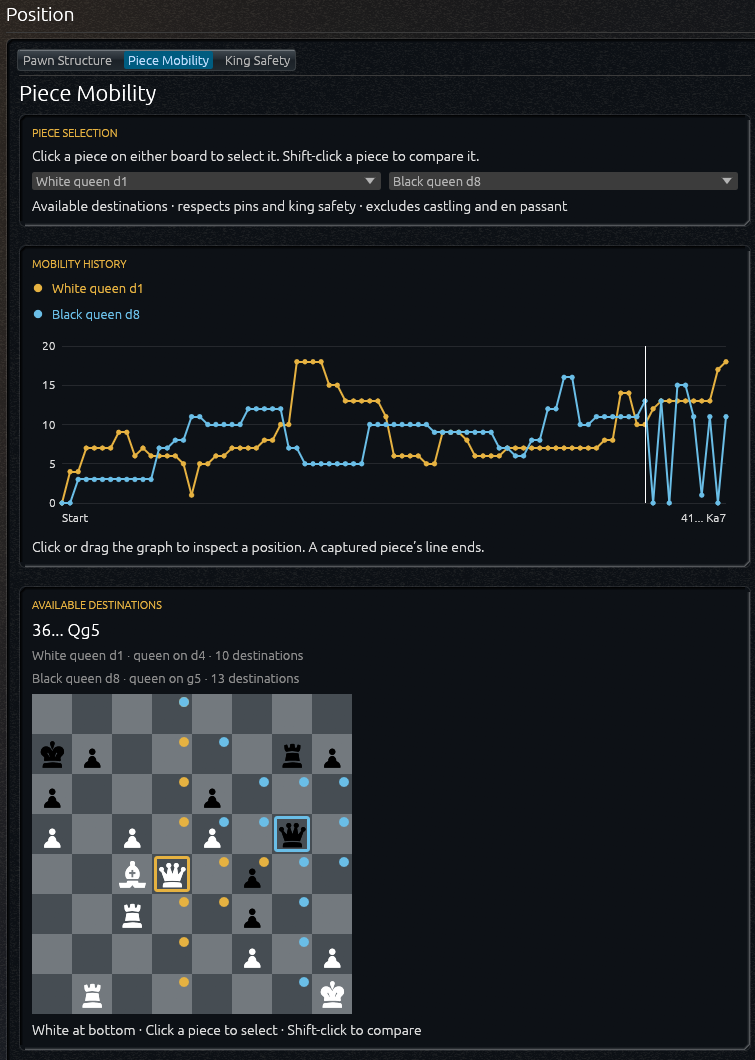
Piece mobility
Open Position → Piece Mobility to track a piece’s available destinations through the game, or select a second piece for comparison.
View full size ↗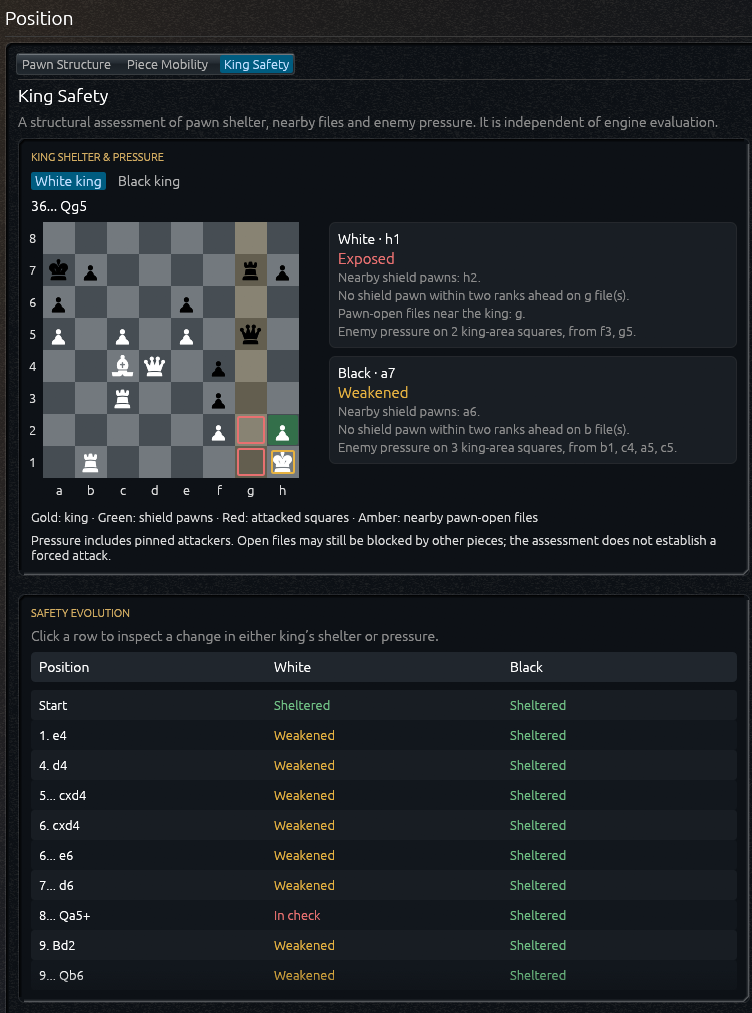
King safety
Open Position → King Safety to inspect each king’s pawn shelter, nearby files, and enemy pressure, with a timeline of changing conditions.
View full size ↗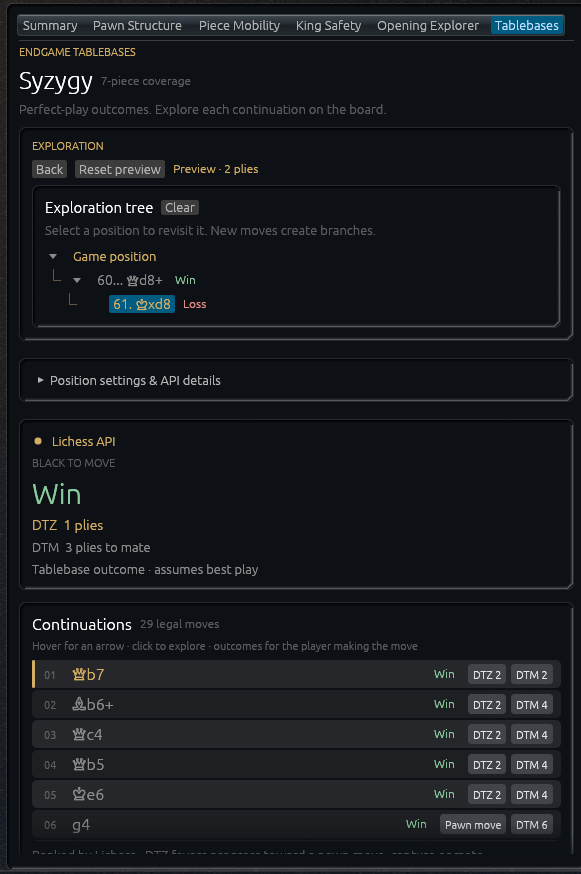
Endgame tablebases
Open Explore → Endgames to explore endgame branches and perfect-play outcomes, with ranked continuations and available DTZ and DTM distances.
View full size ↗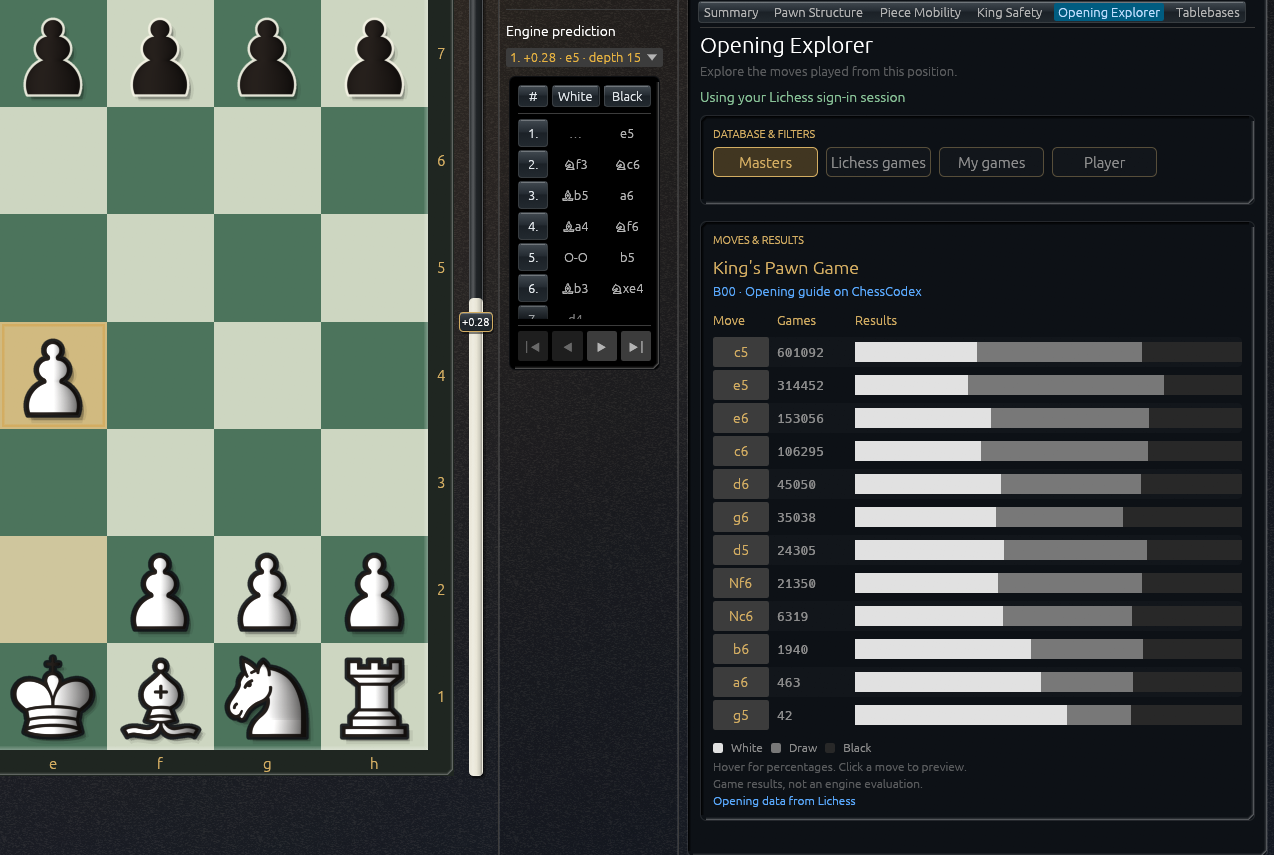
Opening Explorer
Open Explore → Openings to explore opening choices using Masters, Lichess, or player statistics and preview continuations beside the board.
View full size ↗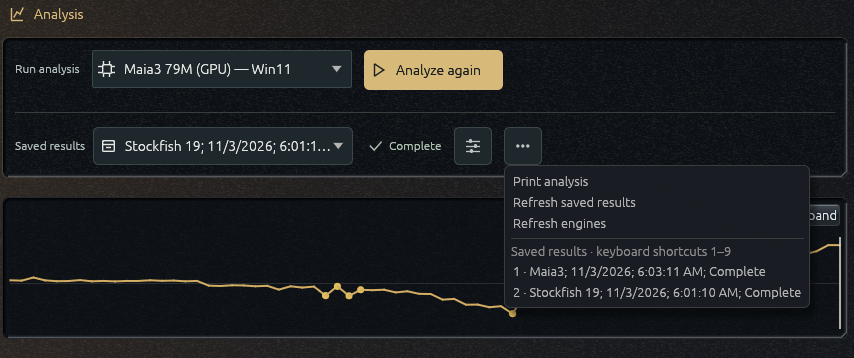
Compare saved analyses
Choose a saved run from the saved-results selector or use keys 1–9. More options lists the numbered shortcuts and includes printing and refresh actions.
View full size ↗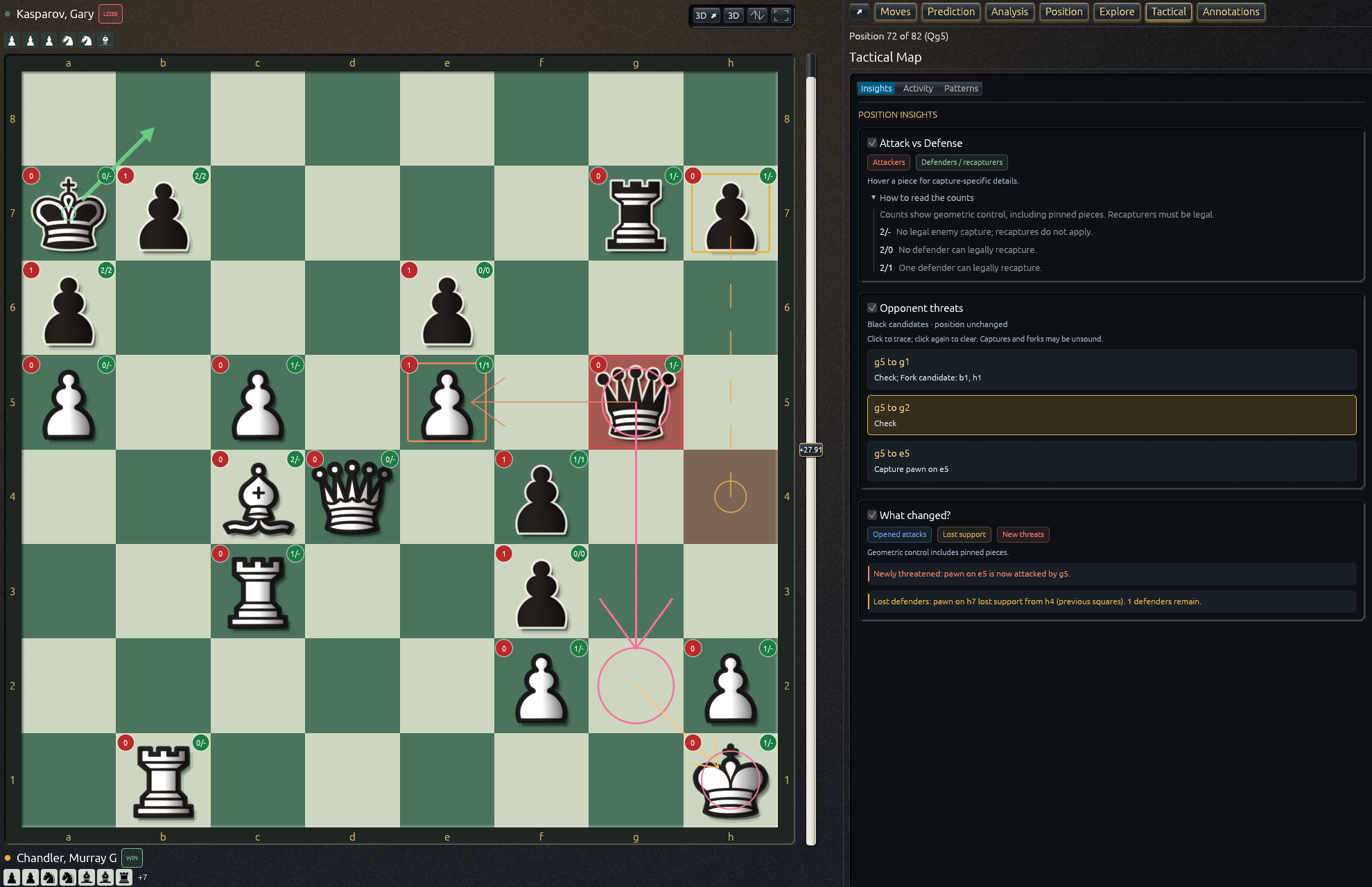
Tactical Map
Inspect threats, pins, forks, and tactical relationships on the board. Choose which overlays to show in the Tactical tab.
View full size ↗Example report
Kasparov vs Vachier-Lagrave
Explore an Ironwood full-game analysis report in PDF format.
If the preview is unavailable in your browser, open the PDF directly.
Training
Play against AI, follow your rating, and turn practice into a focused puzzle routine.
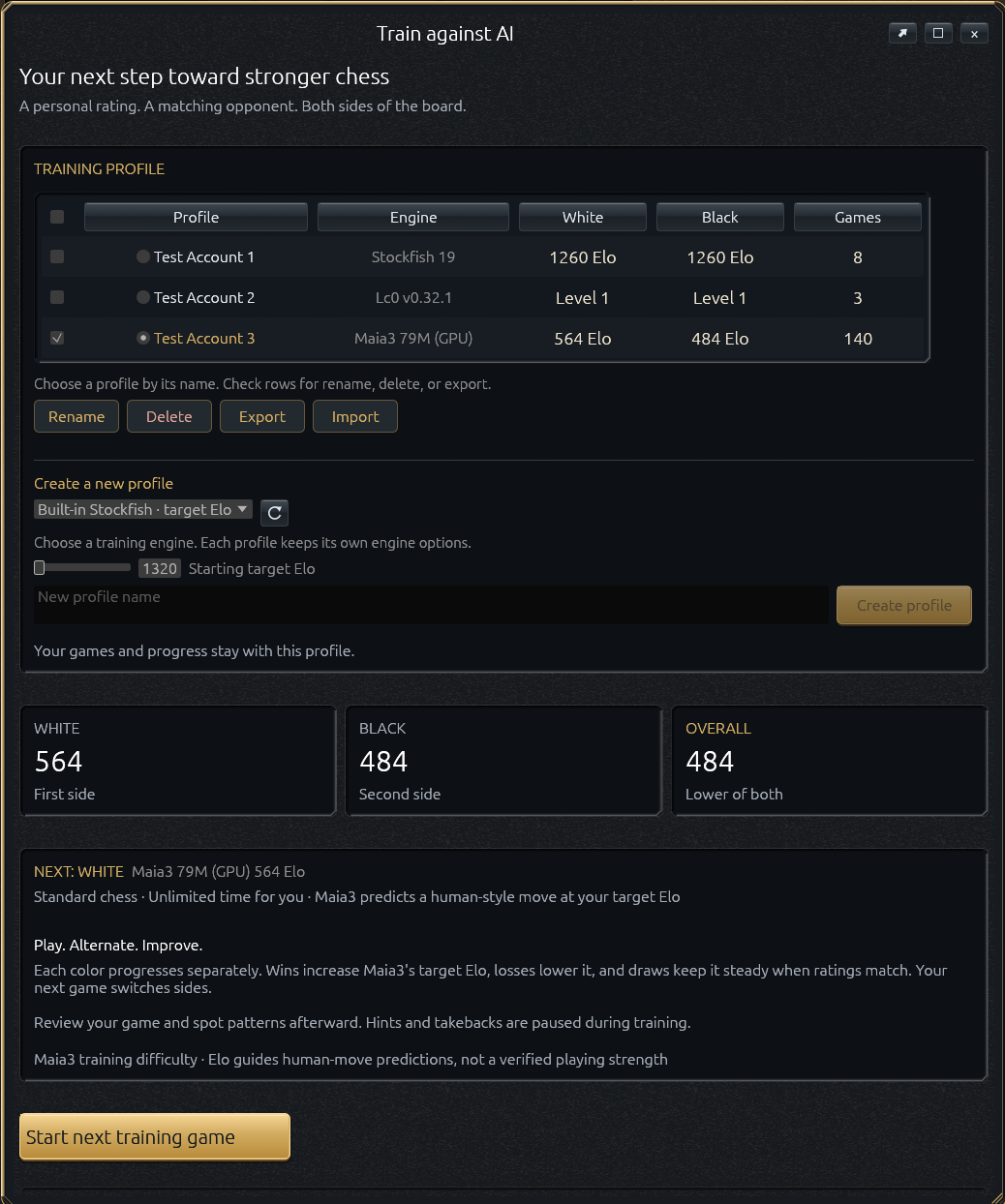
Train against AI
Choose an engine and training profile, then build separate ratings for both sides of the board from Training → Train against AI.
View full size ↗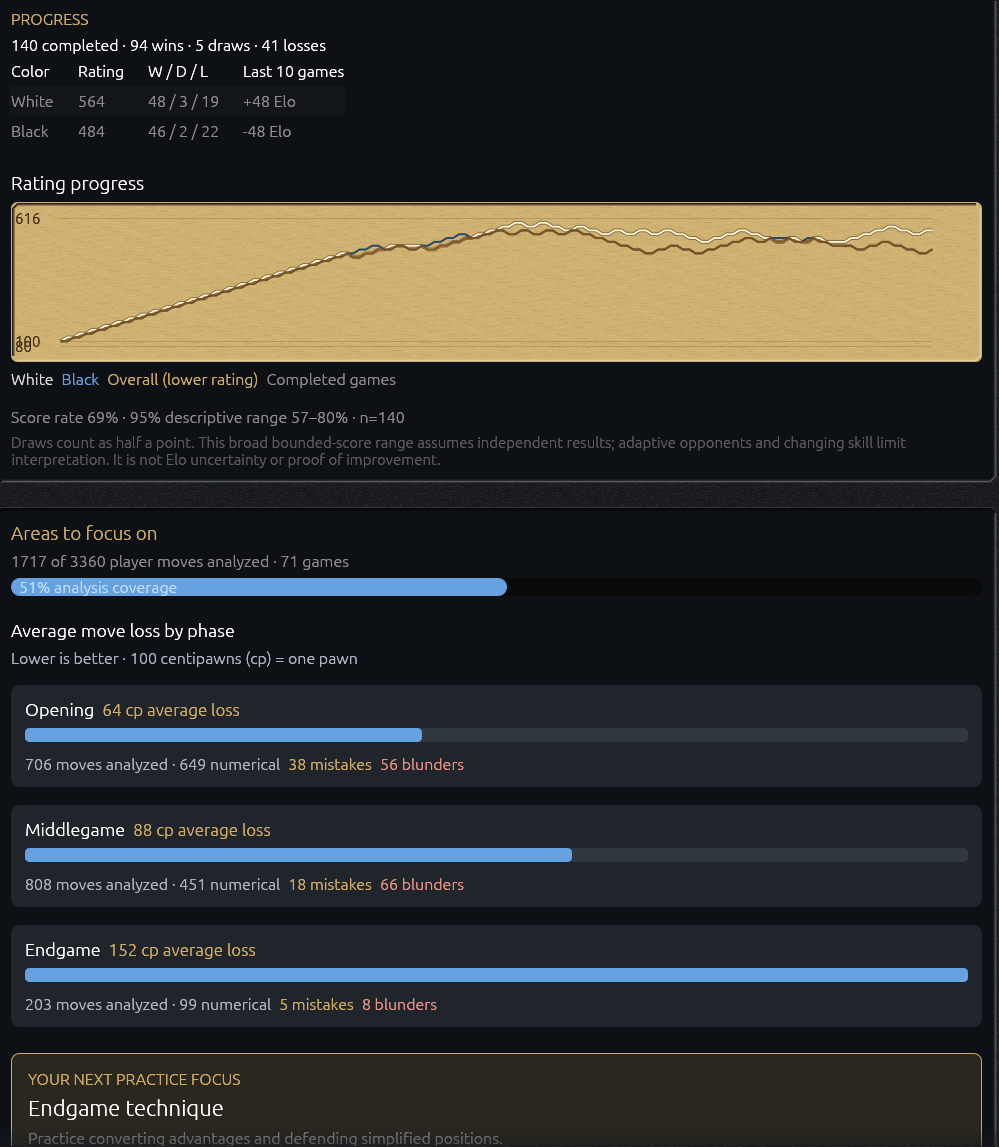
Training progress
Track your rating over time and use suggested puzzle themes to focus your next practice session.
View full size ↗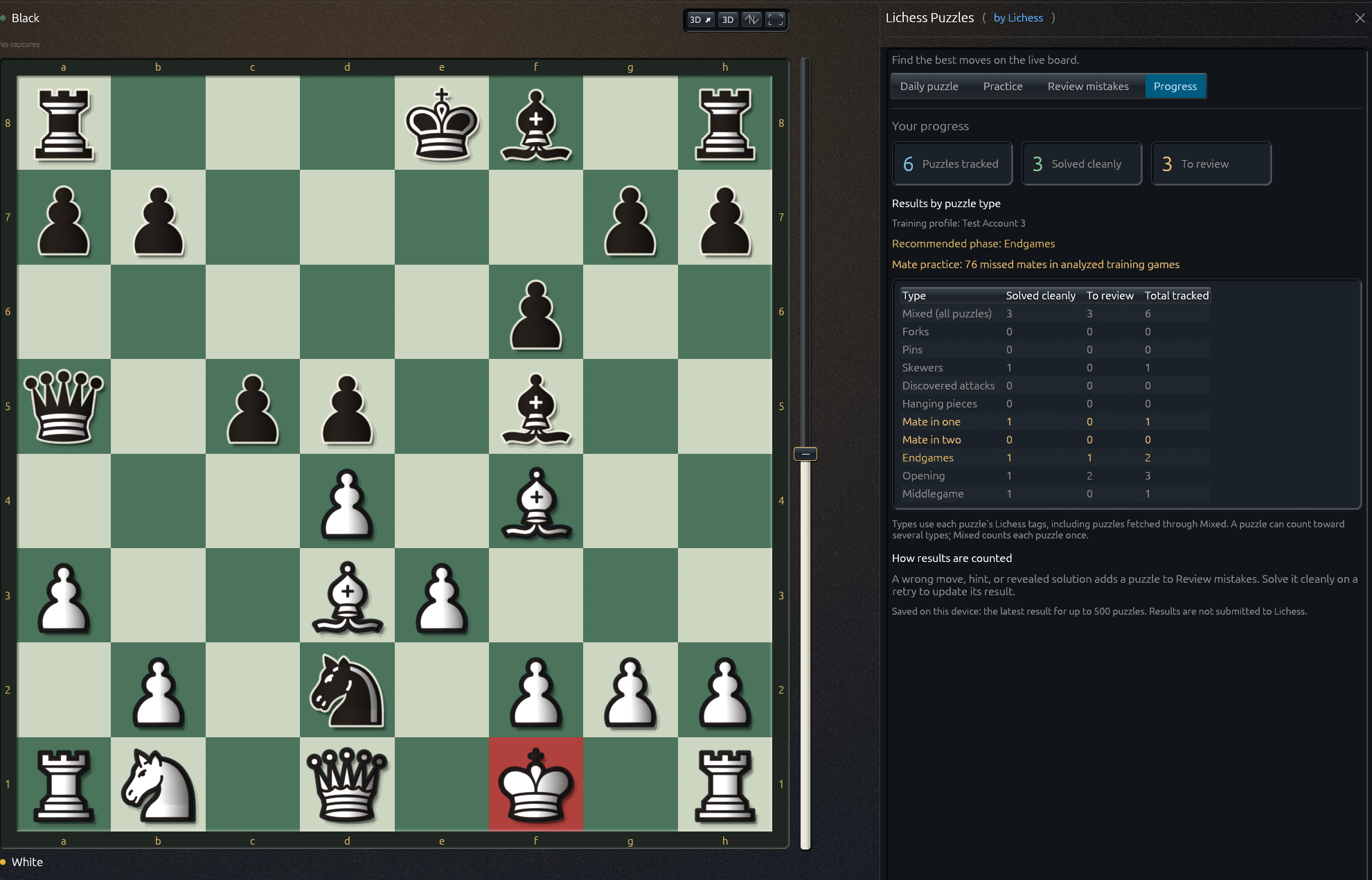
Lichess puzzle progress
Practice Lichess puzzles, revisit missed attempts, and track your progress from Training → Lichess Puzzles.
View full size ↗Online play and players
Play online and bring other players’ games into your study workspace.
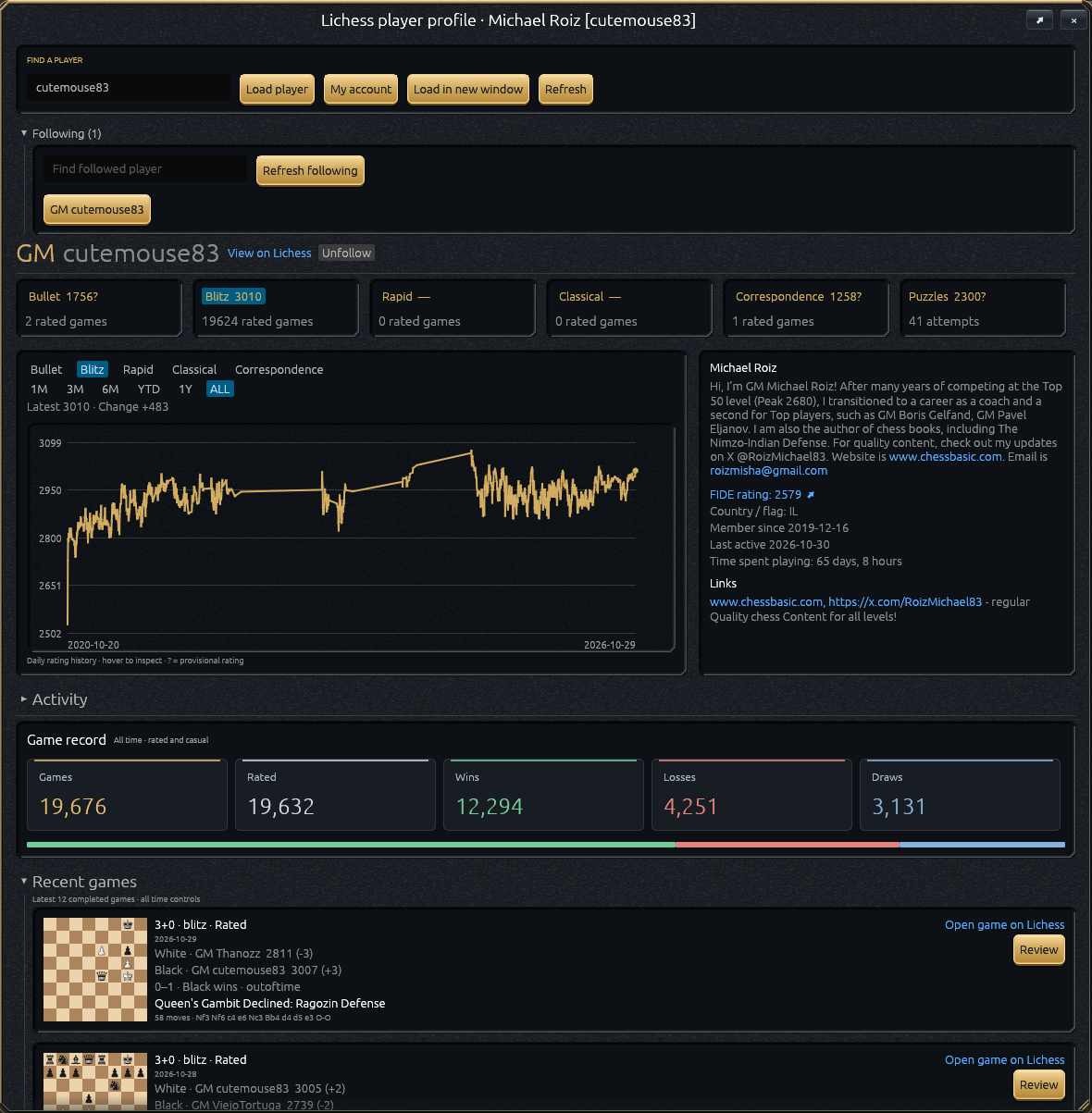
Follow Lichess players
Explore a player’s recent games, open a game for review, and analyze it in Ironwood.
View full size ↗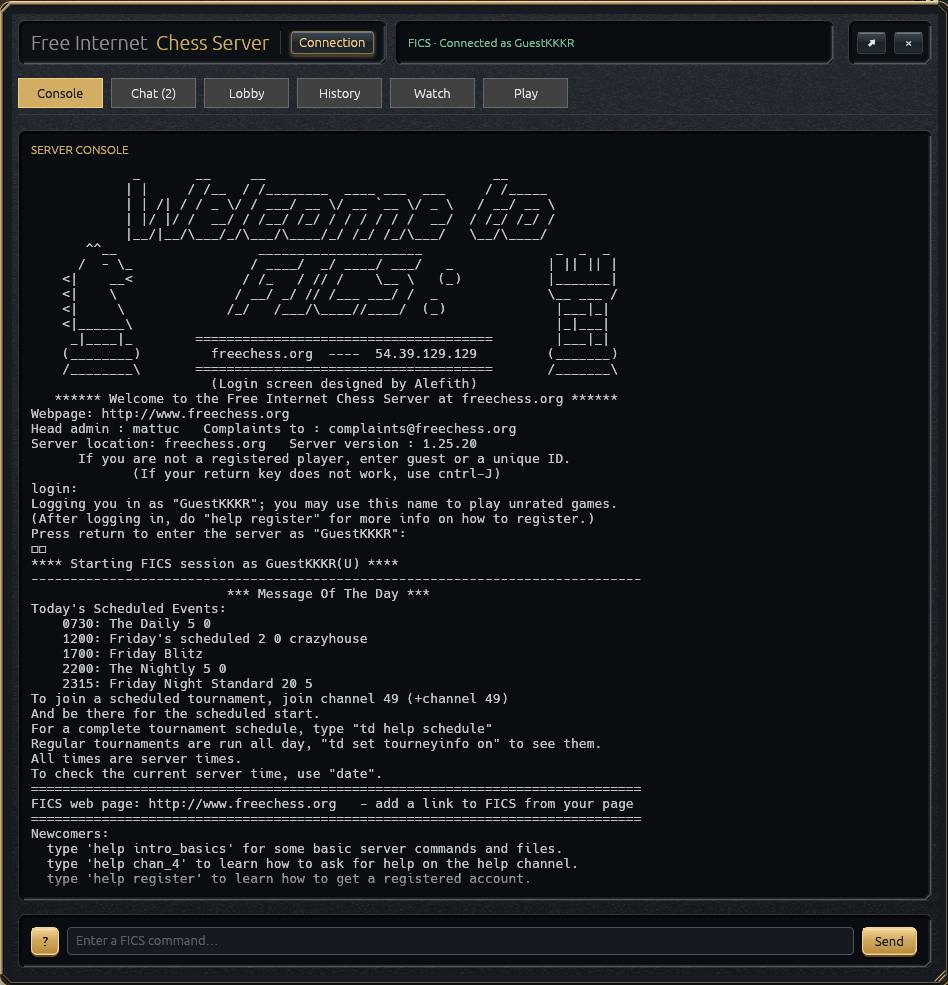
Play on FICS
Open Play → Online → FICS lobby to join the lobby, find games, and use the server console.
View full size ↗